
Keep a piece of work in one topic
By the end, one long-running piece of work — planning an office move — has its own topic, you have worked on it in topic mode, and you have picked it up again the next day from its brief.
What you need: Neuronz.ai connected to your agent.
What a topic does
Most of what your agent saves stands on its own: a fact, a rule, a note on what was done. Some work runs for days or weeks, though, and you want everything about it in one place. That is what a topic is for:
Topic mode is how you tell your agent "we are working on this now". While a conversation is in topic mode, your agent starts from the topic's brief and files what it saves under the topic. When you leave, it brings the brief up to date.
Topics are optional. Your agent never creates a topic or enters topic mode on its own: both happen only when you ask. Everything else in Neuronz.ai works the same without them.
1. Create a topic
Ask in plain words:
create a topic for planning the office moveYou should see your agent check that you don't already have one, then create the topic and name it, for example Office move. In a chat, you may be asked to approve create_topic.
You can also create it yourself: on the Topics page of the dashboard, click New topic and give it a Title.
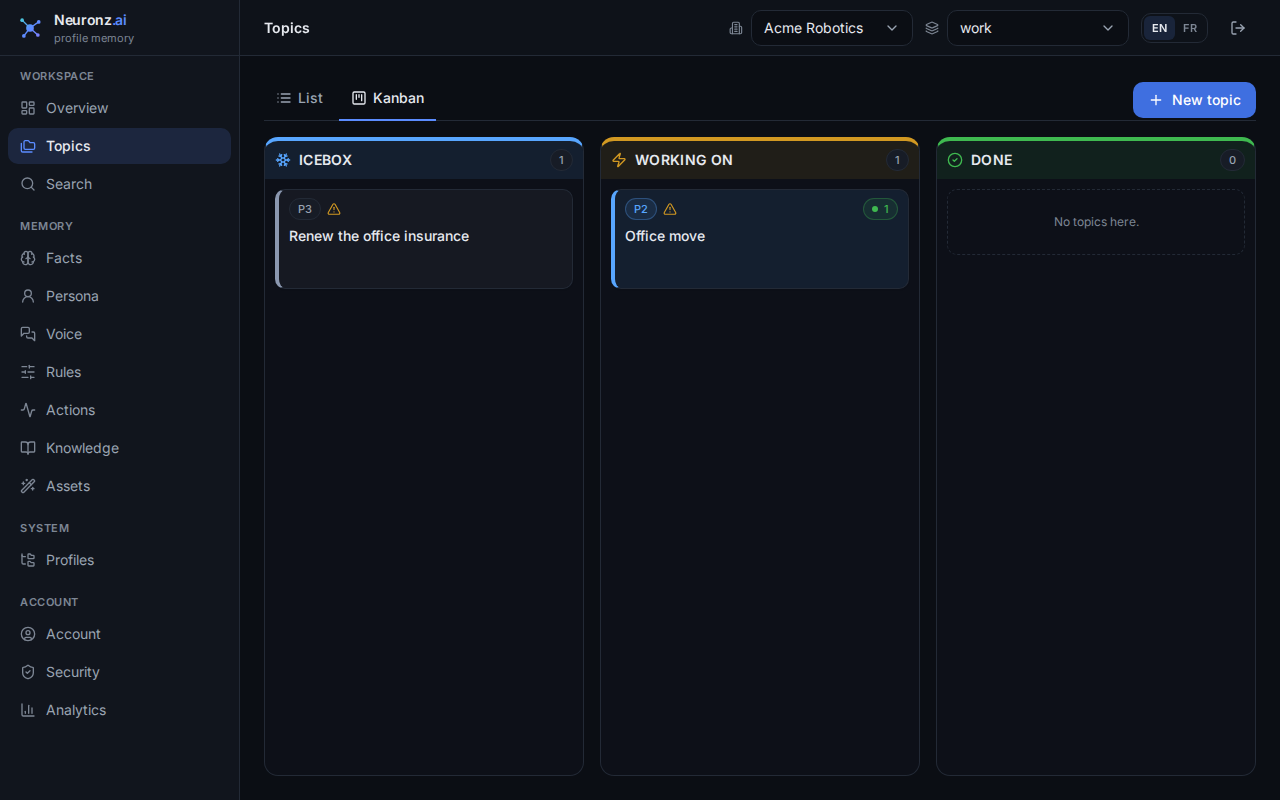
Either way, Office move is now a task: work with a finish line. Switch the Topics page to Kanban to see it on the board. A task you create on the dashboard starts in Icebox; your agent may put it straight in Working on. Drag it wherever it belongs.
Only collecting notes?
For something you only gather notes on, with no finish line, such as ideas for next year's offsite, ask for an info topic instead. It has no status and stays off the board.
2. Enter topic mode
let's work on the office moveYou should see your agent find Office move, read its brief, and say it is working on it. In a chat, you may be asked to approve enter_topic.
Where you can see that topic mode is on:
In Claude Code in a terminal, and in Oh-My-Pi, the status line at the bottom shows
🎯and the topic's name. The Claude desktop app's Code tab does not show it, but topic mode works there too.
On the dashboard, while a Claude Code or Oh-My-Pi session is in the topic, its panel on the Topics page shows a green active now badge.
In a chat, nothing shows it: the conversation knows which topic it is in, and that is all.
3. Work in it
Tell your agent what you decide, as you normally would:
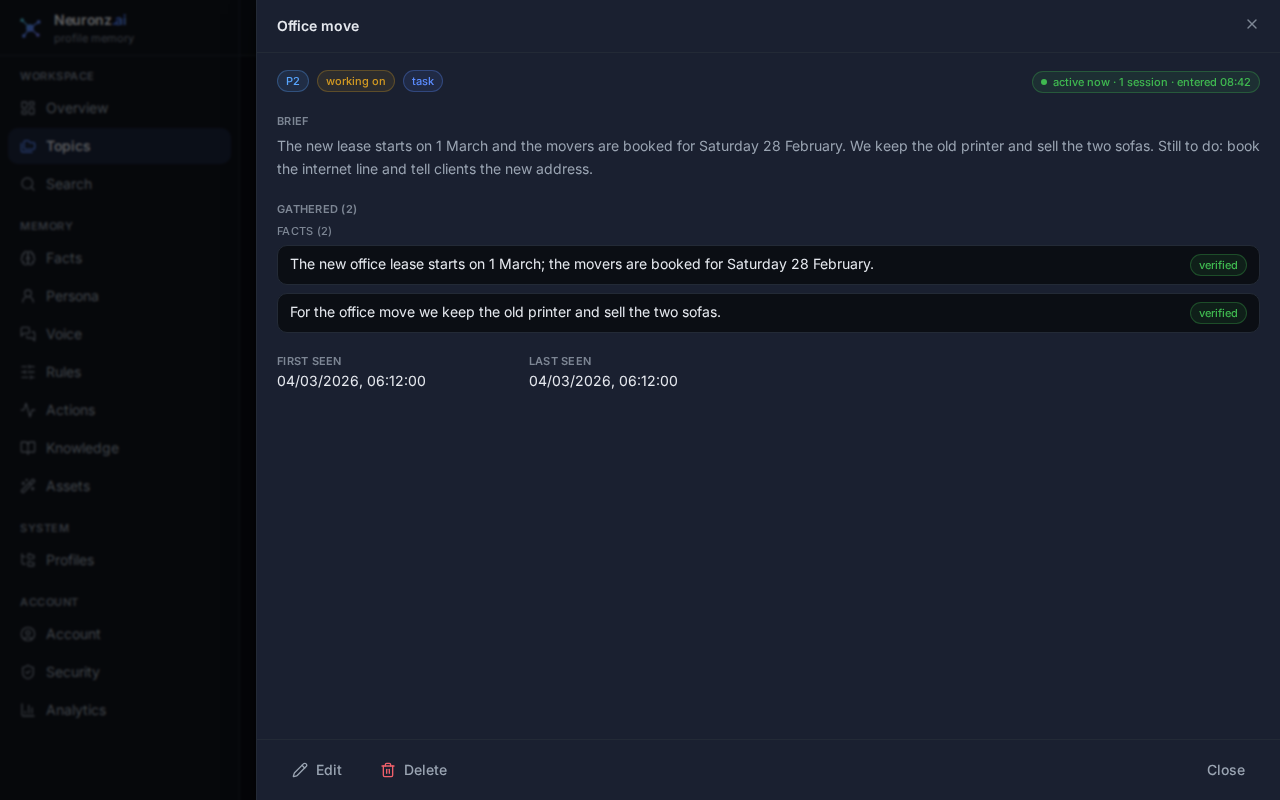
the new lease starts on 1 March, and the movers are booked for Saturday 28 Februarywe keep the old printer and sell the two sofasYou should see your agent save each of these and file them under Office move.
- In Claude Code and Oh-My-Pi, your agent is reminded of the topic on every message, so it files new things there on its own, and what is already filed under the topic comes up more easily when it searches your memory.
- In a chat, nothing reminds it. If it saves something without mentioning the topic, say "file that under the office move topic".
4. Leave it
I'm done with the office move for todayYou should see your agent leave topic mode and write the topic's Brief: a few sentences on where things stand and what is left. The 🎯 disappears from the status line.
Click Office move on the Topics page. Its panel shows the Brief, and everything filed under the topic under Gathered. You can change the brief yourself with Edit.
Closing the session also ends topic mode, but saying you are done first is what gets the brief rewritten. In a chat, also save the conversation before you leave.
5. Come back another day
Open a new conversation (a new session in the same folder, or a new chat). Every new conversation starts outside any topic, so say:
let's work on the office moveYou should see your agent enter the topic again, read its brief and tell you where things stand: the lease date, the movers, the printer and the sofas, and what is left. In a chat, add "check Neuronz.ai" if it does not look on its own.
6. Close it
When the move is behind you:
the office move is done, close the topicYou should see Office move in the Done column of the board, or drag it there yourself. Your agent may offer to close a task that looks finished, but only you decide. The day after, a done topic is archived and leaves the board.
What just happened
A topic gathers one piece of work in your profile, with a brief written for you to read. Topic mode puts one conversation inside the topic until you say you are done or the conversation ends. How much happens on its own depends on your harness:
- Claude Code (terminal or the desktop app's Code tab) and Oh-My-Pi remind your agent of the topic on every message and file new things under it. Each session has its own topic, so two sessions in the same folder can work on two different topics at once.
- A chat reads and updates the topic when you ask, and files things under it while the conversation has it in mind. Nothing reminds it on each message.
Working on code?
The same works for a bug or a feature: "create a topic for the login timeout bug". The topic can also keep links to the pull requests and tickets involved.
More depth: topics and the dashboard.
Next: A rule for one situation.