
Claude desktop app
The Claude desktop app has two tabs, switched at the top left of the window: Claude, for chats and Cowork tasks, and Code, which is Claude Code. They connect to Neuronz.ai differently:
| Code tab | Claude tab (chats and Cowork tasks, and claude.ai) | |
|---|---|---|
| How it connects | The Neuronz.ai plugin | A custom connector |
| Automatic recall on every prompt | Yes | No — ask Claude to check |
| Session briefing, rules, voice, personas | Yes | No — ask Claude to read them |
| Profile | From the repo you open | Your default chat profile, or one you pick |
| Capture | Automatic during the session; run it yourself before closing | Ask Claude to save or capture |
The Code tab is Claude Code inside the app, so the plugin runs the full memory loop there. Chats and Cowork tasks reach Neuronz.ai as a tool server: Claude can read and write your memory when you ask it to, but nothing happens on its own.
Chat and Cowork tabs
Anthropic is merging chat and Cowork into the one Claude tab, starting with Pro and Max plans. If your app still shows separate Chat and Cowork tabs, everything on this page for the Claude tab applies to both.
Code tab
Prerequisites
- A Neuronz.ai account with a verified email address — see Create your account.
- A session that runs on your computer, which is the Code tab's default. If you use SSH sessions to work on another machine, Neuronz.ai works there too. It does not work in cloud or WSL sessions, because the app does not load plugins there.
- Python 3 on your
PATH(on the remote machine, for an SSH session) — the plugin's hooks use only the standard library. On Windows, install Git for Windows (its Git Bash runs the hooks), then install Python 3.
1. Install the plugin
In the Code tab, click + below the prompt box, open Plugins, and choose Browse plugins.
Click Add → Add marketplace, then Add from a repository.
Enter this URL and click Sync:
texthttps://github.com/neuronzai/neuronzai.gitInstall neuronzai from the marketplace at user scope, so it is available in every repo.
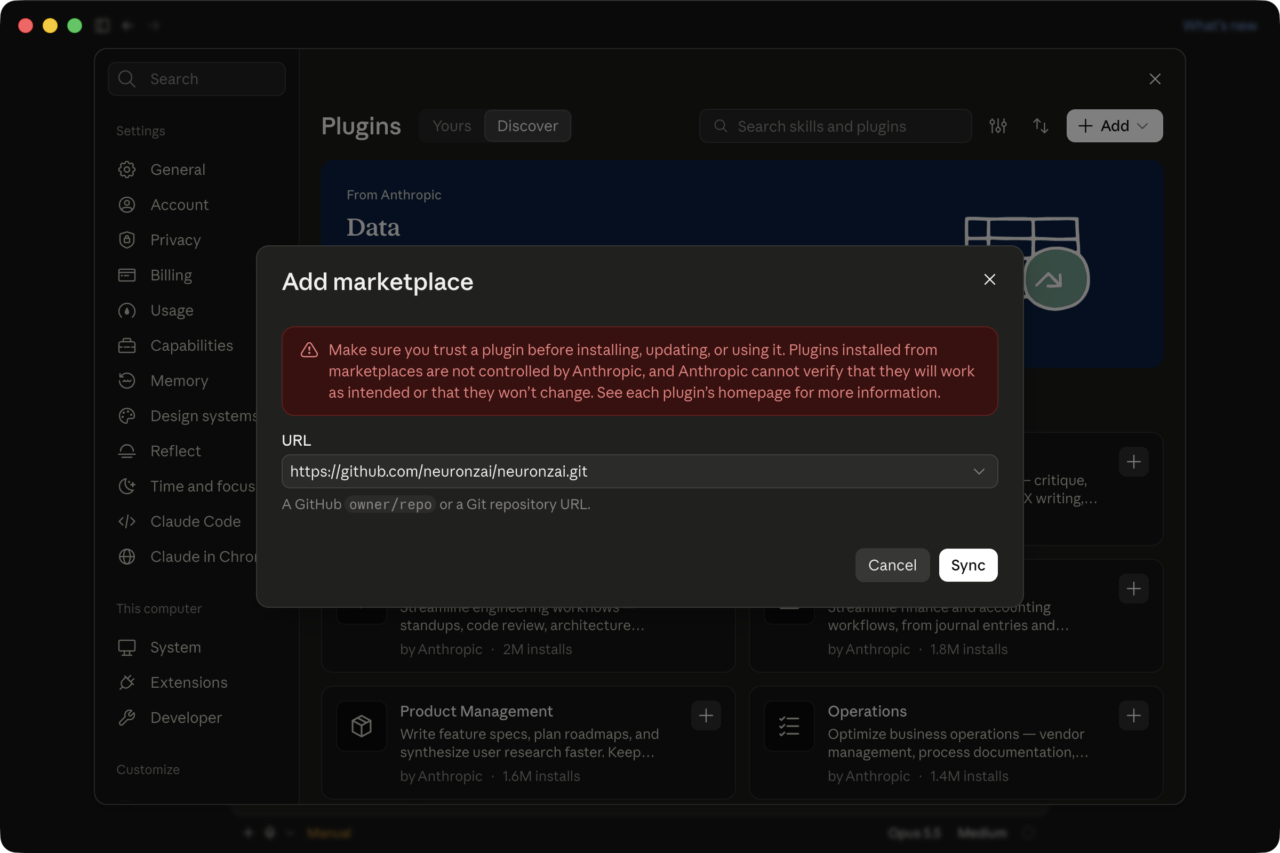
The app and the Claude Code CLI read the same configuration, so if you already installed the plugin from the CLI it is already there. From a terminal, the same install is:
claude plugin marketplace add \
  https://github.com/neuronzai/neuronzai.git
claude plugin install neuronzai@neuronzai
2. Sign in
Start a new session and run:
/neuronzai:loginYour browser opens Neuronz.ai; approve the sign-in and return to the app. The login is shared with the CLI on the same machine.
3. Work as usual
Everything in the Claude Code guide applies: recall on every prompt, the session briefing, rules, /neuronzai:capture and /neuronzai:switch-profile. The one visible difference is that the app does not show the plugin's topic status line.
Capture before you close
During a session the plugin nudges Claude to capture what it learned at natural stopping points. When you close a session in the desktop app, no final capture runs after it ends, so whatever happened since the last capture is not saved. Before you close a session you care about, run:
/neuronzai:captureClaude tab and claude.ai
The Claude tab uses the same account as claude.ai, so one connector serves both.
1. Add the connector
Open Customize → Connectors, click Add, and choose Add custom connector.
Name it
Neuronz.ai, enter this URL as the MCP server URL, and click Continue:texthttps://app.neuronz.ai/mcp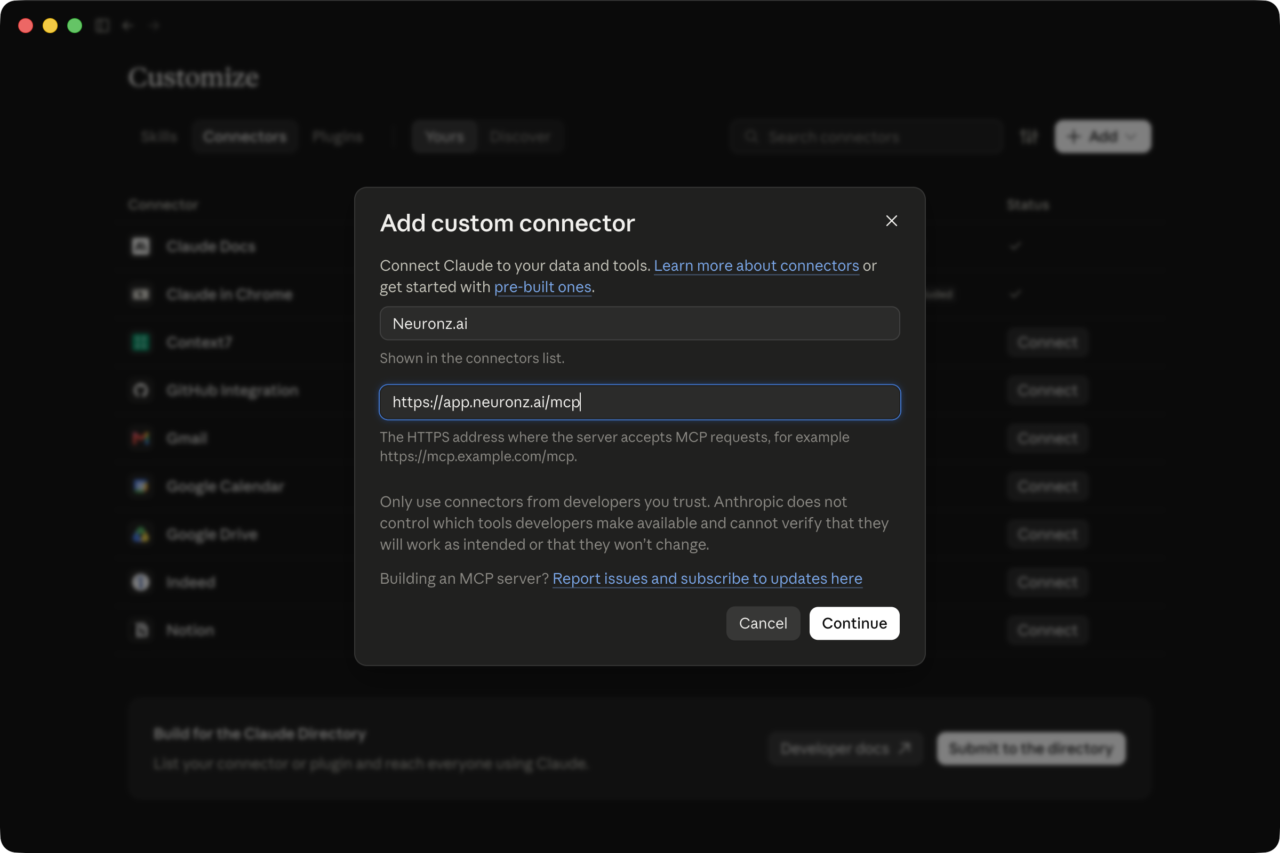
The app checks the server and selects Sign in now and Register automatically on its own. Leave them as they are and click Add.
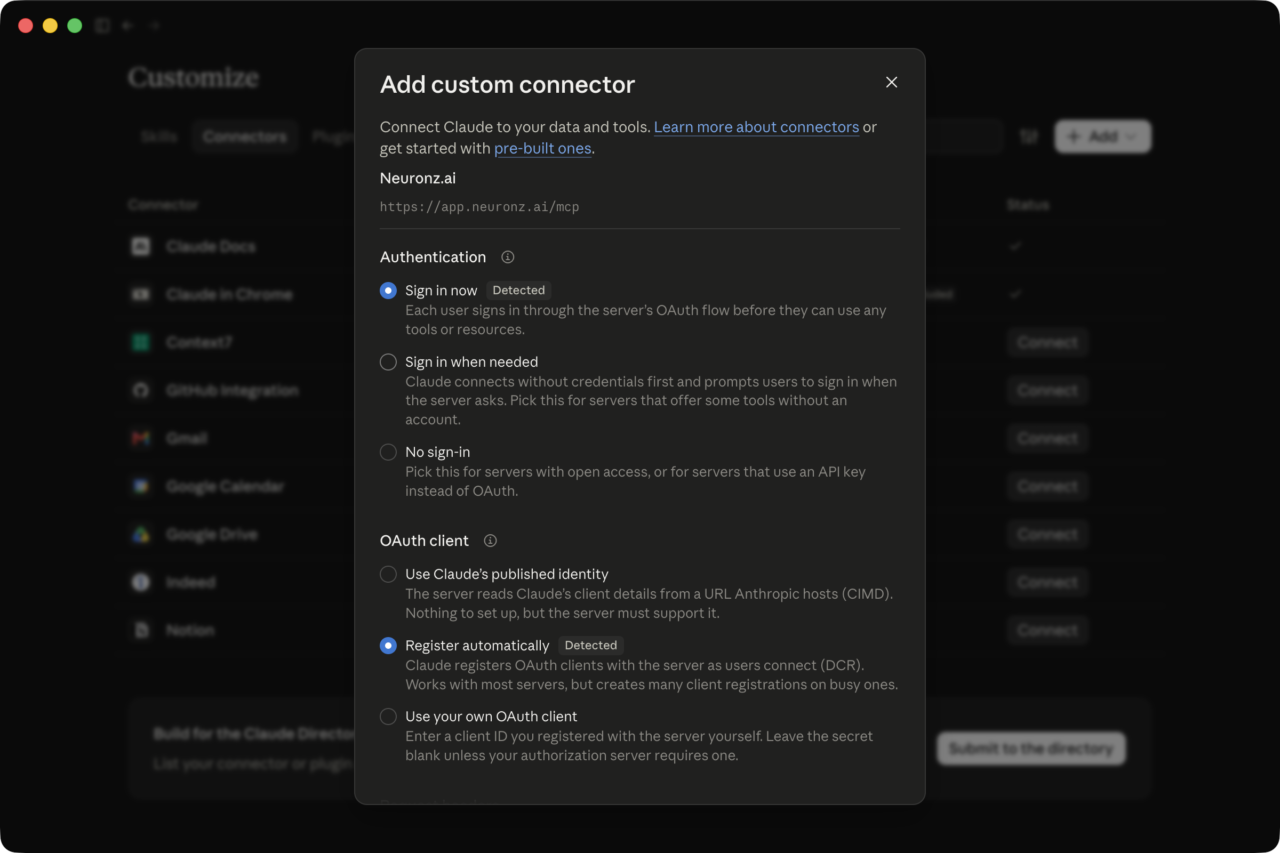
Click Connect. Your browser opens: click Continue connecting, sign in to Neuronz.ai, then click Open Claude to return to the app.
The connector page then lists the Neuronz.ai tools. Each one starts as Needs approval, so Claude asks before it uses a tool; change a tool to Always allow there, or in the prompt when Claude asks.
In a new chat the connector is already on. To check, or to turn it off for one chat, click + in the prompt box and open Connectors.
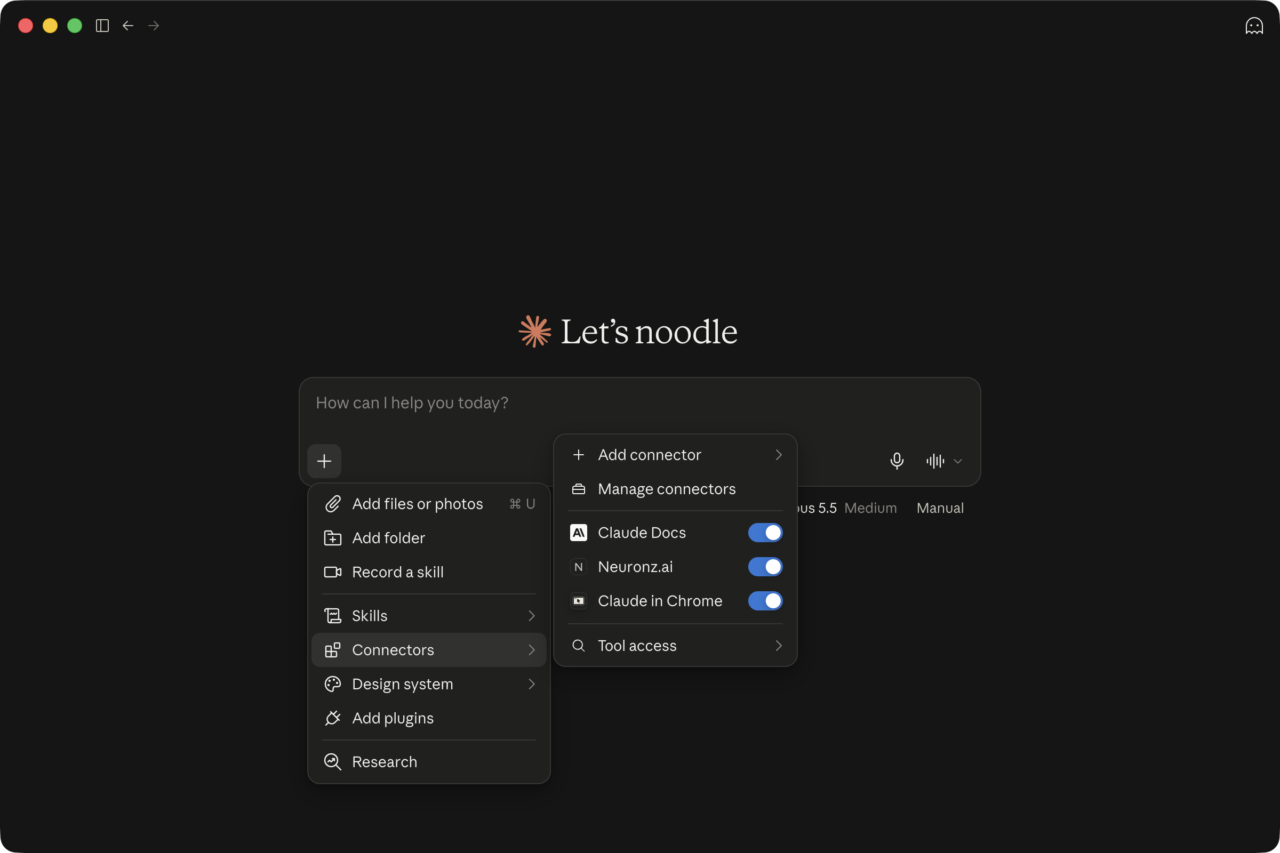
Custom connectors are available on every Claude plan; the Free plan allows one. On Team and Enterprise plans, an owner first adds the connector under Organization settings → Connectors; members then find it under Customize → Connectors and click Connect.
2. Choose a default chat profile
A chat has no working directory, so it cannot pick a profile the way the Code tab does. Instead, it uses your default chat profile. On the Profiles page of the dashboard, click the star on a profile's card (Set as default). That profile then shows a default badge.
A new account has no profiles yet. Create one first, with New profile on the same page, or by asking Claude in a chat to "create a profile called work".
- A new chat starts on your default. The first time Claude calls a Neuronz.ai tool, it is told which profile to use and passes it on every later call in the chat.
- Switching — ask Claude to "switch to the
billingprofile". It calls theswitch_profiletool and passes that profile on every later call in the chat. Your default does not change. - Resuming an older chat keeps the profile that chat was using.
- Changing your default only affects new chats.
If you have not set a default, Claude asks you which profile to use the first time it needs one.
3. Use it
Nothing runs automatically in a chat, so tell Claude when to use Neuronz.ai:
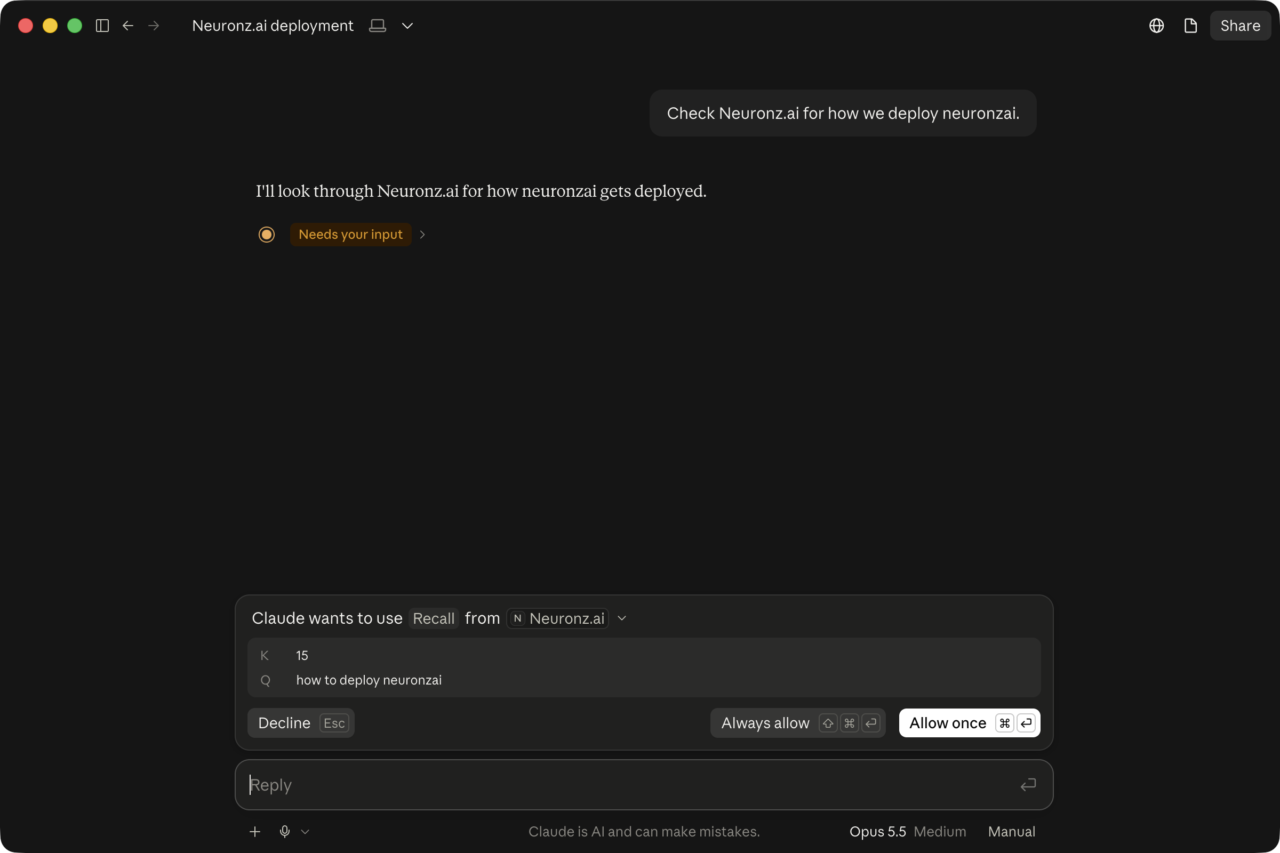
- Before answering — "check Neuronz.ai for how we deploy billing", or "read my rules first".
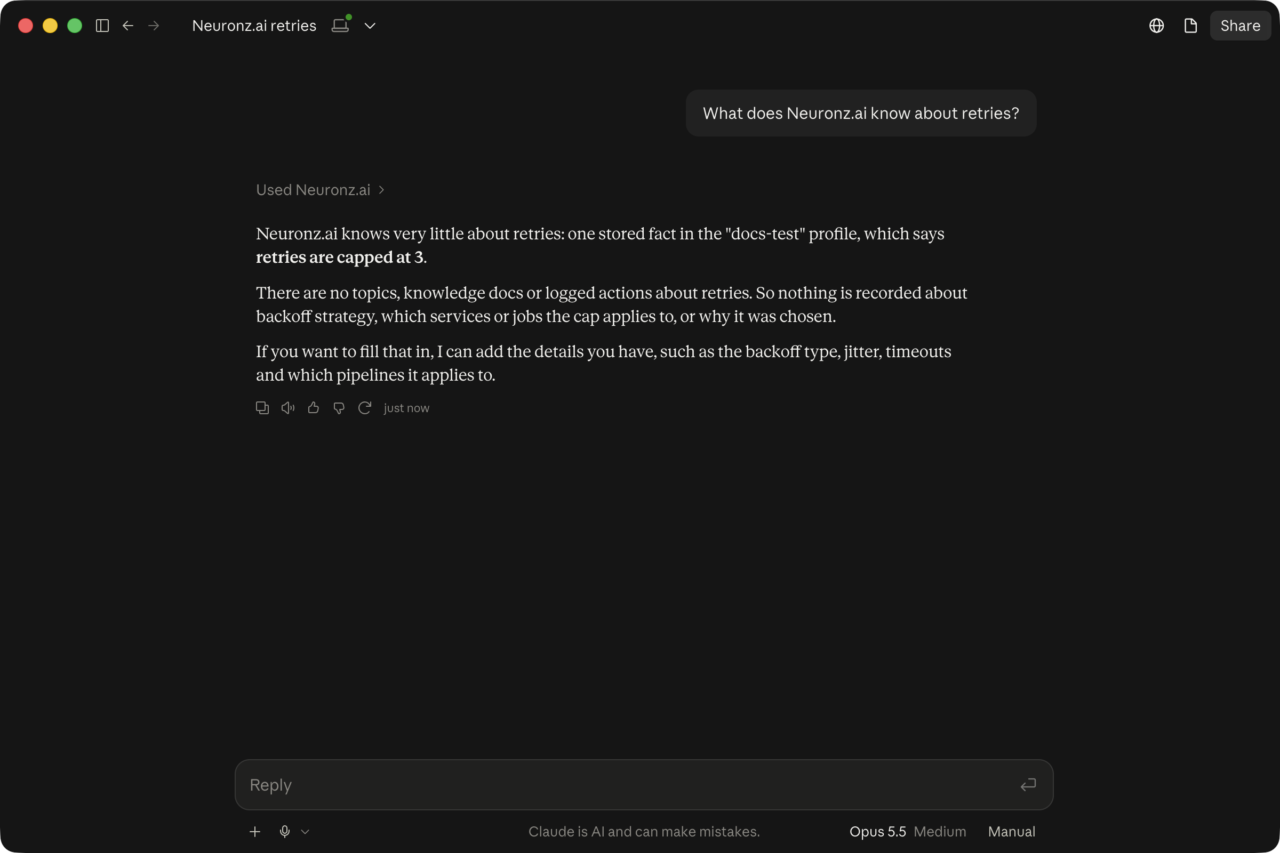
- To save something — "save this to Neuronz.ai: retries are capped at 3".
- At the end of a chat — "capture this conversation to Neuronz.ai". Claude reviews the chat and saves the durable facts, decisions and work it contains.
Claude does all of this with the MCP tools — recall, read_rules, fact_add, log_action and the rest. Unless you chose Always allow, it asks before each call:
Cowork tasks
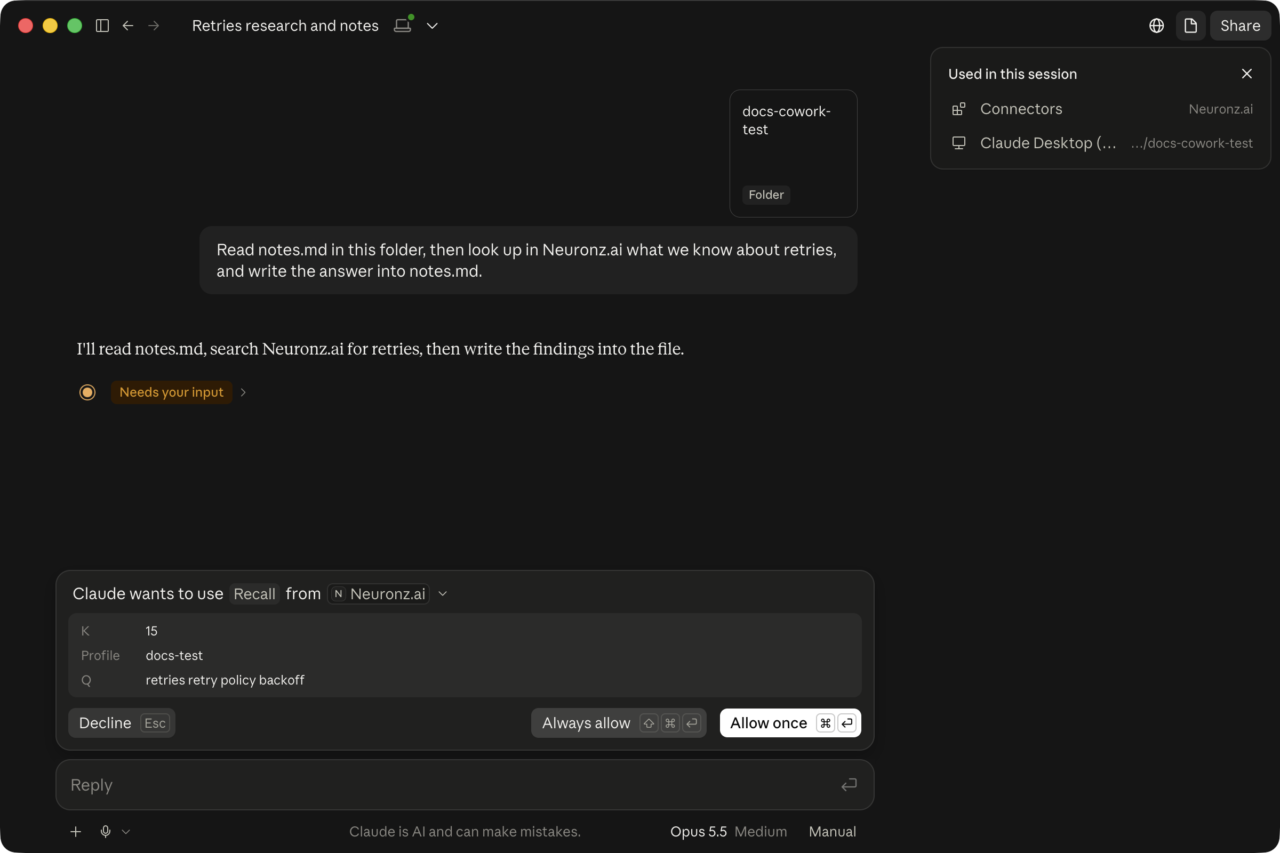
A Cowork task, where Claude works in a folder on your computer, uses the same connector, default chat profile and tools as a chat. Add a folder with Project or folder → Add folder, then ask for the task as usual — for example, "look up what Neuronz.ai knows about retries and write it into notes.md".
Limitations
In the Claude tab and on claude.ai:
- No automatic recall. Claude only searches your memory when you ask, or when it decides to on its own.
- No session briefing. Your rules and profile of you are not loaded at the start of a chat.
- Rules are not enforced. Claude sees your rules only if it reads them, and there is no check before a tool runs.
- No voice or colleague pointers. Ask Claude to load your voice or a colleague's profile when it matters.
- No automatic capture. Nothing is saved when a chat ends unless you ask.
- No slash commands.
/neuronzai:login,/neuronzai:switch-profileand the other plugin commands do not exist here; the connector signs in on its own andswitch_profilereplaces the switch command. - One profile at a time. A chat works in one profile until you switch it.
For the full loop, open the Code tab in a repo instead.
Next
- Core concepts — memory, knowledge, topics, and the graph.
- Profiles — how profiles scope your memory.
- MCP tools — the full tool surface.