
Claude mobile app
Chats in the Claude app on your phone reach Neuronz.ai through the same custom connector as chats in the Claude desktop app and on claude.ai. Claude can read and write your memory when you ask it to, but nothing happens on its own. The steps are the same on Android and iPhone; the screenshots show Android first, then iPhone.
1. Add the connector
Connectors belong to your Claude account, not to one device. If you already added Neuronz.ai in the desktop app or on claude.ai, it is already on your phone: open Settings → Connectors and it is listed with its number of tools.
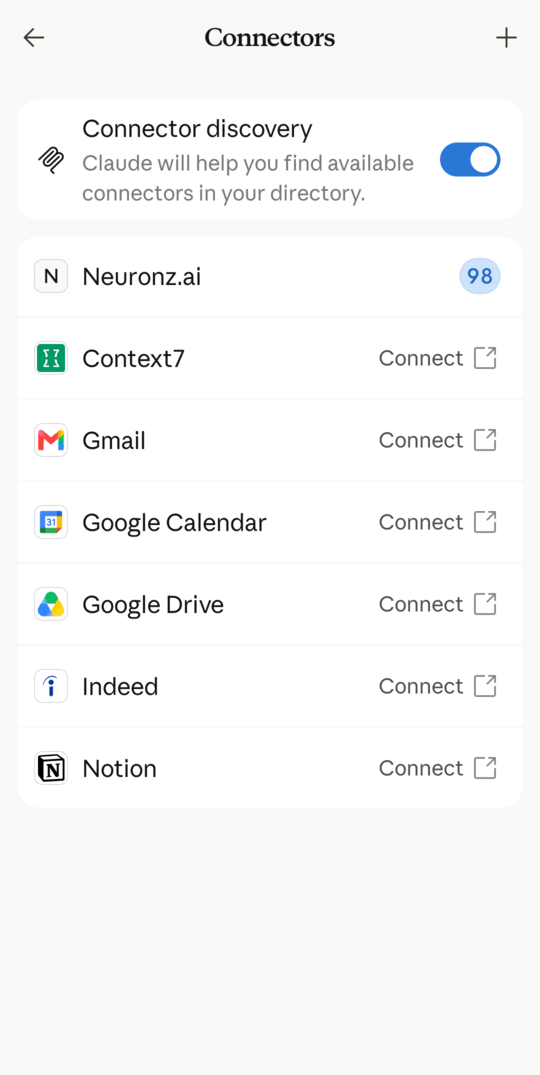
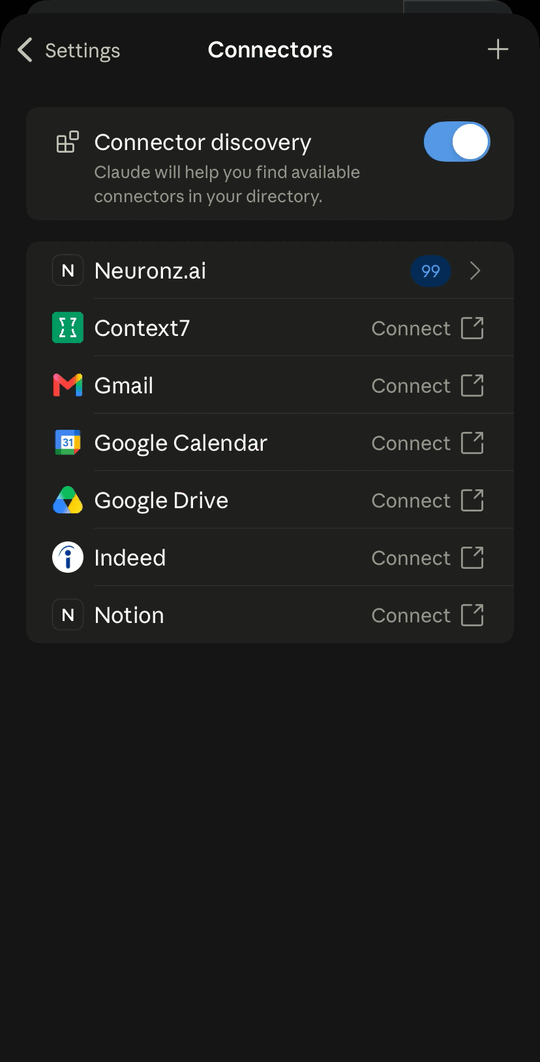
To add it from your phone instead:
Tap the menu at the top left, tap your initials at the bottom, and open Settings → Connectors.
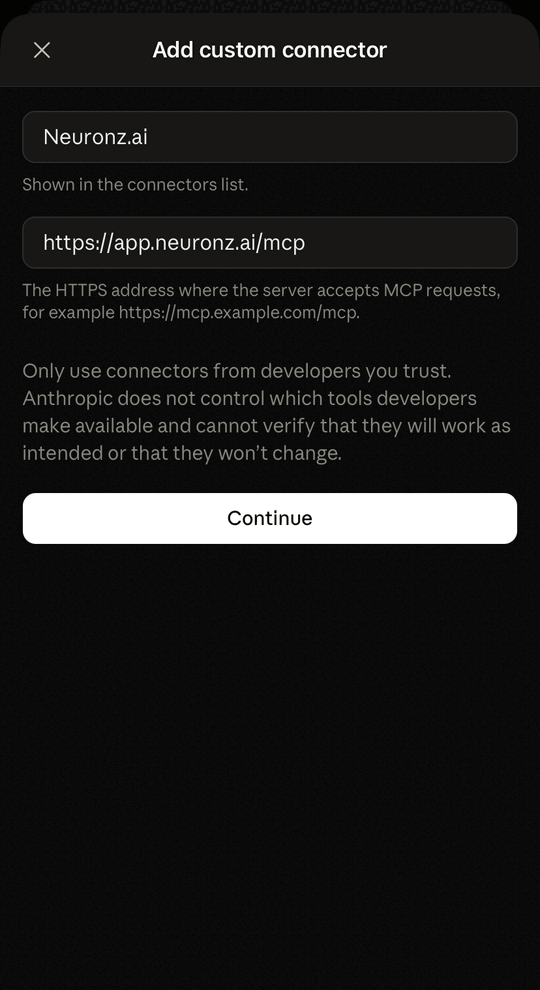
Tap + at the top right and choose Add custom connector.
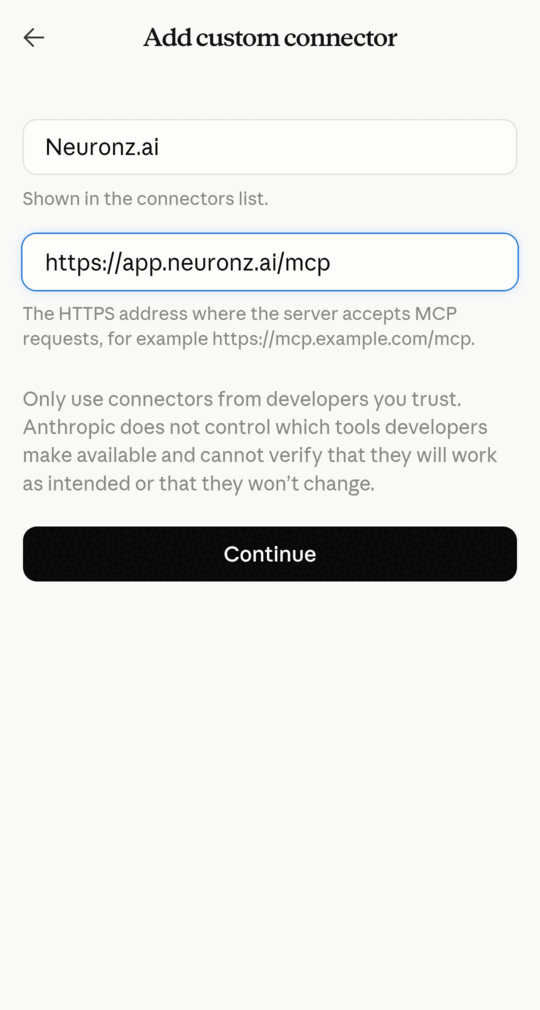
Name it
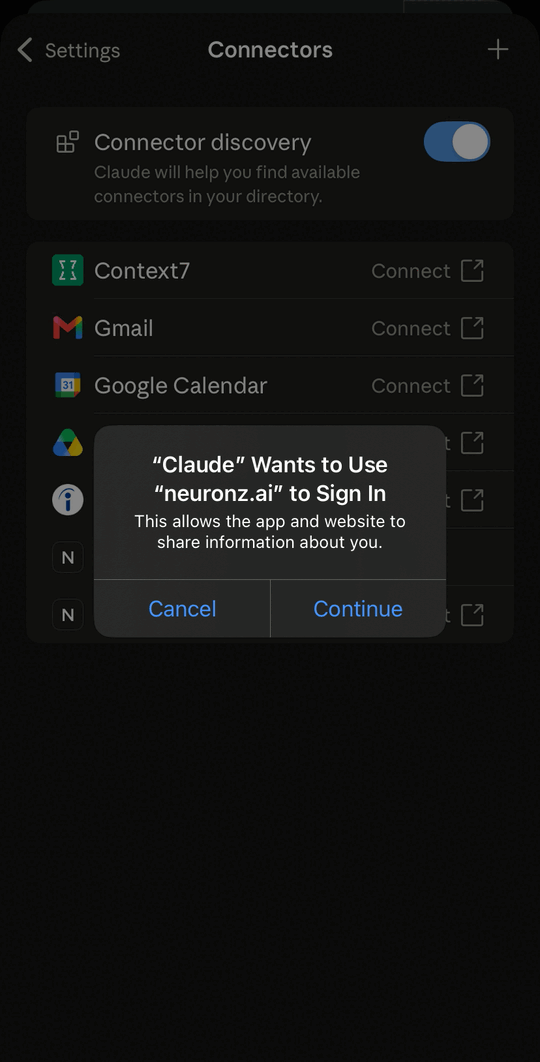
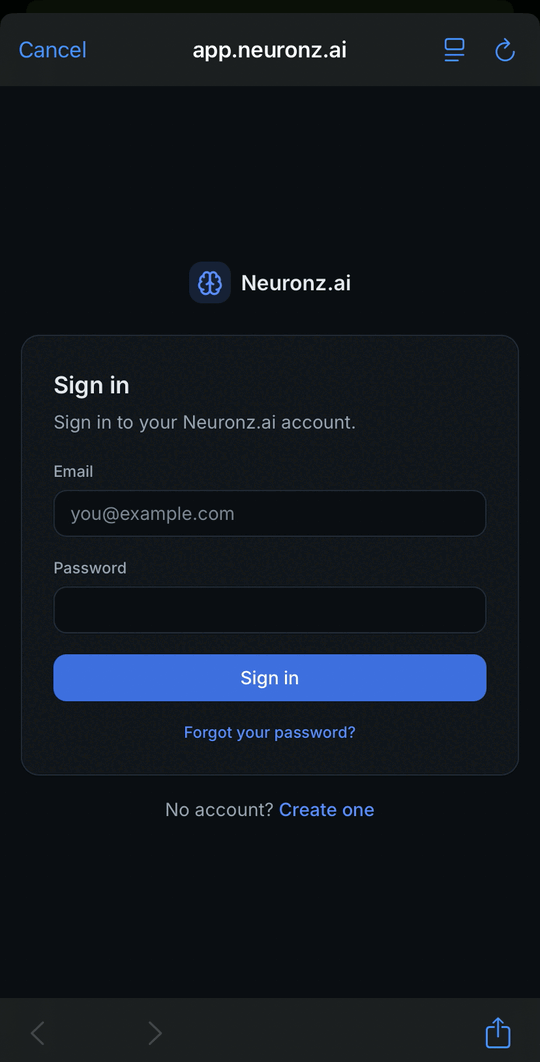
Neuronz.ai, enter this URL as the MCP server URL, and tap Continue:texthttps://app.neuronz.ai/mcpSign in to Neuronz.ai on the page that opens. On iPhone, tap Continue first when iOS asks whether Claude can use neuronz.ai to sign in. The app returns to Connectors on its own, with Neuronz.ai and its number of tools listed.
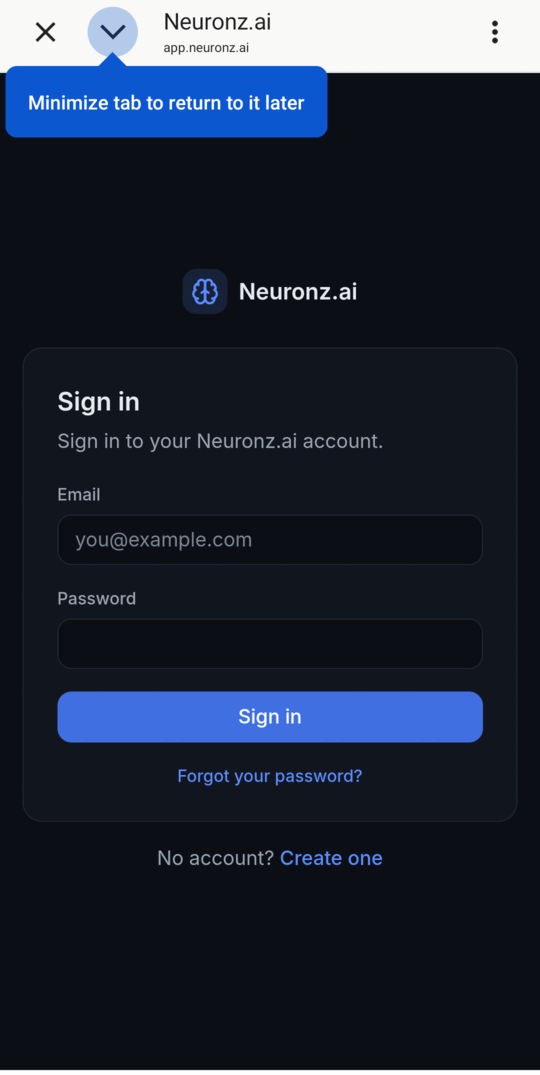
The app accepts one connector per URL, so if Neuronz.ai is already on your account it tells you so and you use the existing one. If it is listed with a Connect button instead of its number of tools, tap Connect and sign in.
2. Choose a default chat profile
A chat on your phone uses your default chat profile, like a chat in the desktop app. Set it on the Profiles page of the dashboard; see Choose a default chat profile. To work in another profile for one chat, ask Claude to "switch to the billing profile".
3. Use it
Tell Claude when to use Neuronz.ai, as in any chat:
- Before answering — "check Neuronz.ai for how we deploy billing".
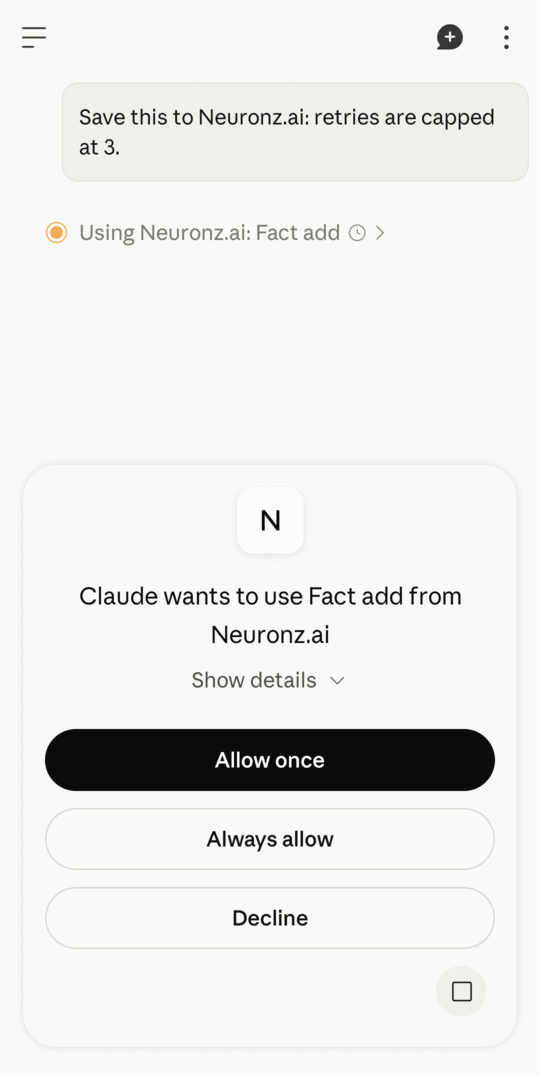
- To save something — "save this to Neuronz.ai: retries are capped at 3".
- At the end of a chat — "capture this conversation to Neuronz.ai".
The first time Claude uses a Neuronz.ai tool, the app asks you to Allow once, Always allow or Decline.
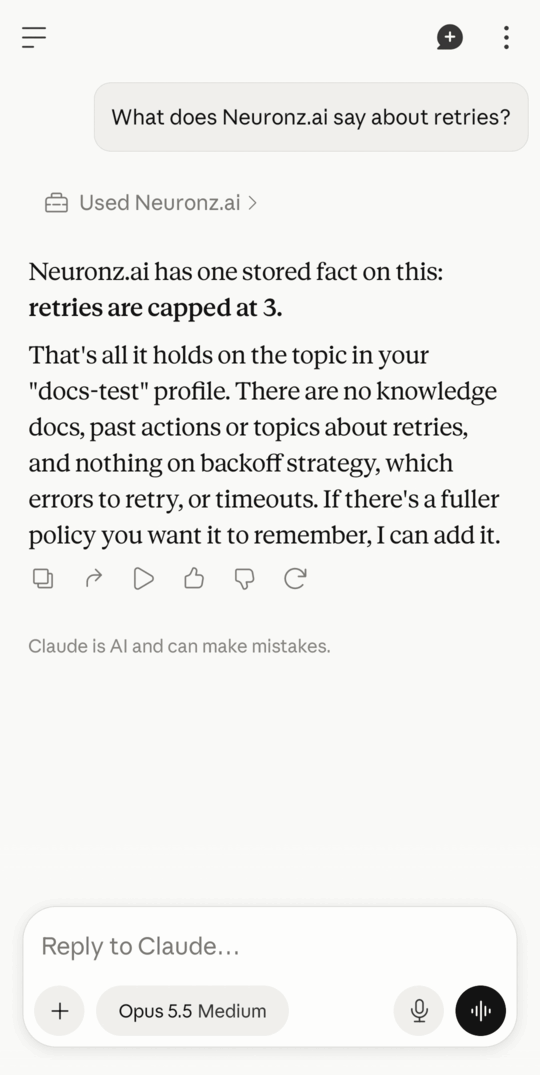
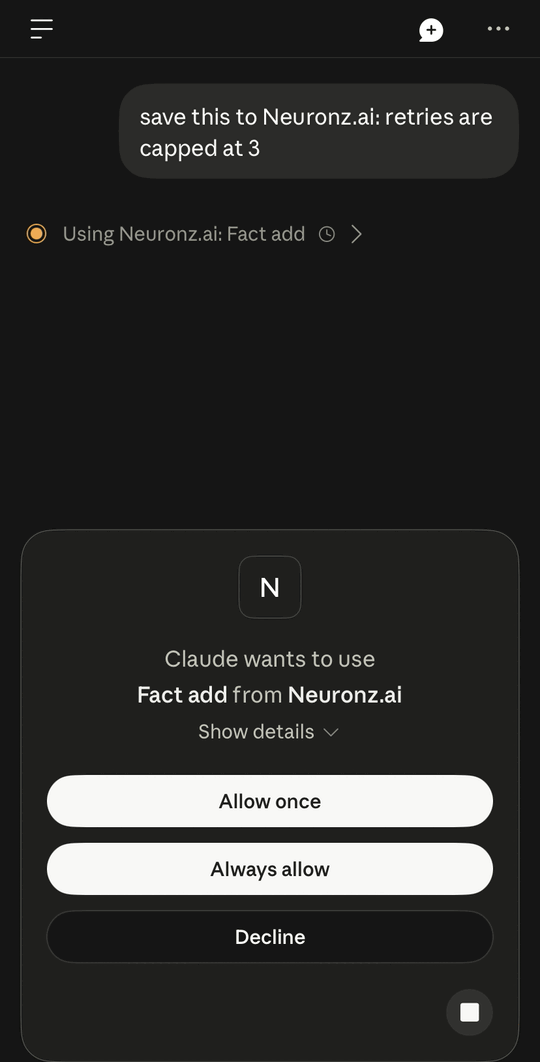
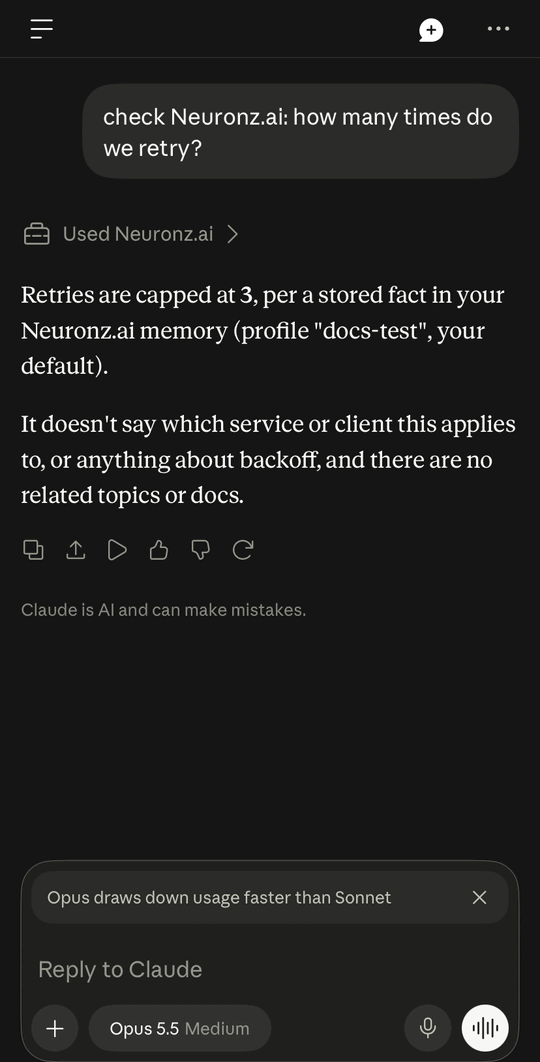
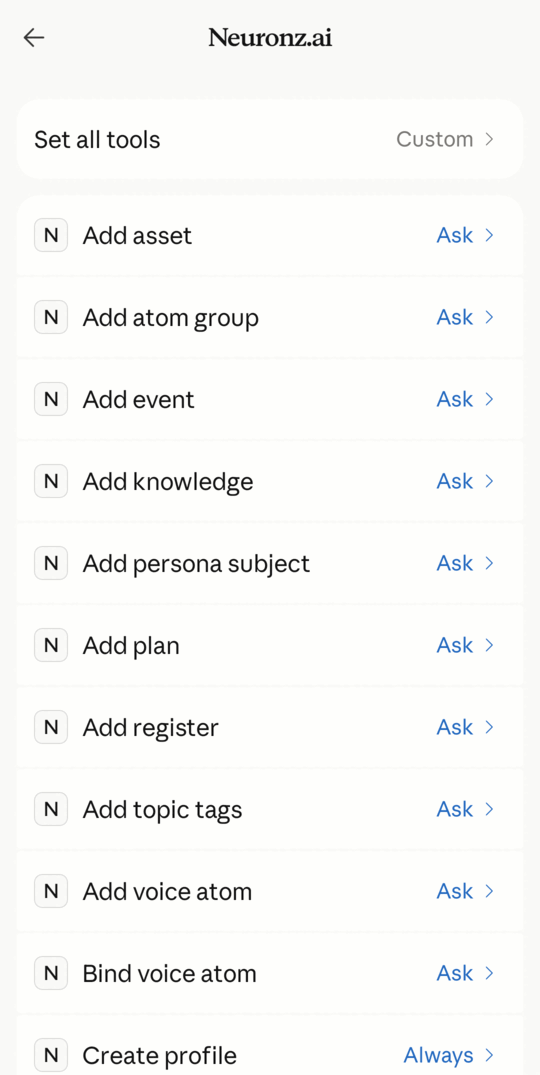
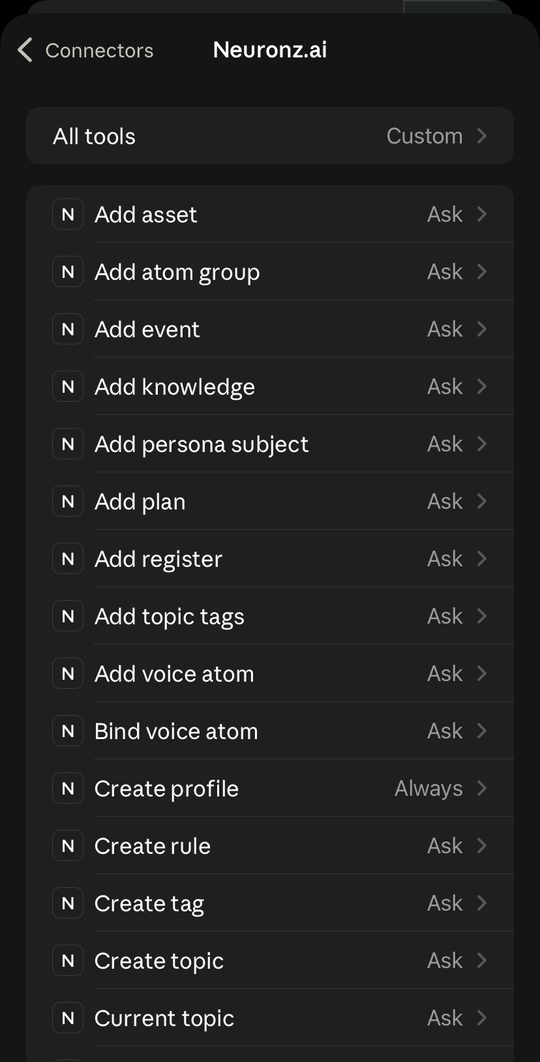
To set every tool at once, or one tool at a time, open Settings → Connectors → Neuronz.ai. Each tool is Always allow, Needs approval or Blocked; on iPhone the list shows them as Always, Ask and Blocked. The choices are shared with the desktop app and claude.ai.
For one chat, you can instead tap + in the prompt box, open Permission and choose Automatically approve: Claude then uses tools without asking, and pauses only if something looks unsafe.
Limitations
A chat on your phone has the same limits as a chat in the desktop app: no automatic recall, no session briefing, rules only when Claude reads them, and no automatic capture. See Limitations.
Next
- Claude desktop app — the same connector on your computer, and the Code tab with the full plugin.
- MCP tools — the full tool surface.