
Split your memory into profiles
By the end, you have a work and a personal profile, and you know which one your harness uses and how to change it.
A profile is a named memory space. Everything Neuronz.ai keeps — what you asked it to remember, your rules, when your voice applies, your documents, your topics — lives in one profile.
Think of it as talking to different people, each one knowing a different part of your life. When you ask for a recipe, your agent has no reason to see your bank statements. When you plan a weekend with friends, you don't want your work rules and client notes getting in the way. With separate profiles, each conversation only knows what belongs to that part of your life:
A profile is not tied to code. It is simply how you want your memory divided.
Which profile is in use
Everything you read or save goes to one profile at a time. How that profile is chosen depends on the kind of harness.
In a chat app (Claude on the web, on your computer or on your phone), each new chat uses your default profile, which you pick once in the dashboard (step 2 below). If you haven't picked one yet, Claude asks you which profile to use. You can move a single chat to another profile whenever you like.
In a coding harness (Claude Code, Oh-My-Pi), you start each session from a folder on your computer, and the folder decides:
- The first time you start in a folder, it gets a new profile with the folder's name, and every later session started there uses it.
- A folder inside it counts as a different folder, so it gets its own profile too, unless you tell Neuronz.ai to use one profile for a folder and everything inside it (step 4 below). Inside a git repository, every folder uses the repository's profile.
- The folder doesn't have to hold code. A
financefolder with your bank statements works just as well.
What you need
Neuronz.ai connected to your agent.
1. Create two profiles
On the dashboard: open the Profiles page, click New profile, type work as the name and click Create profile. Do the same for personal. Leave Directory (optional) empty for now.
Or ask Claude, in any harness:
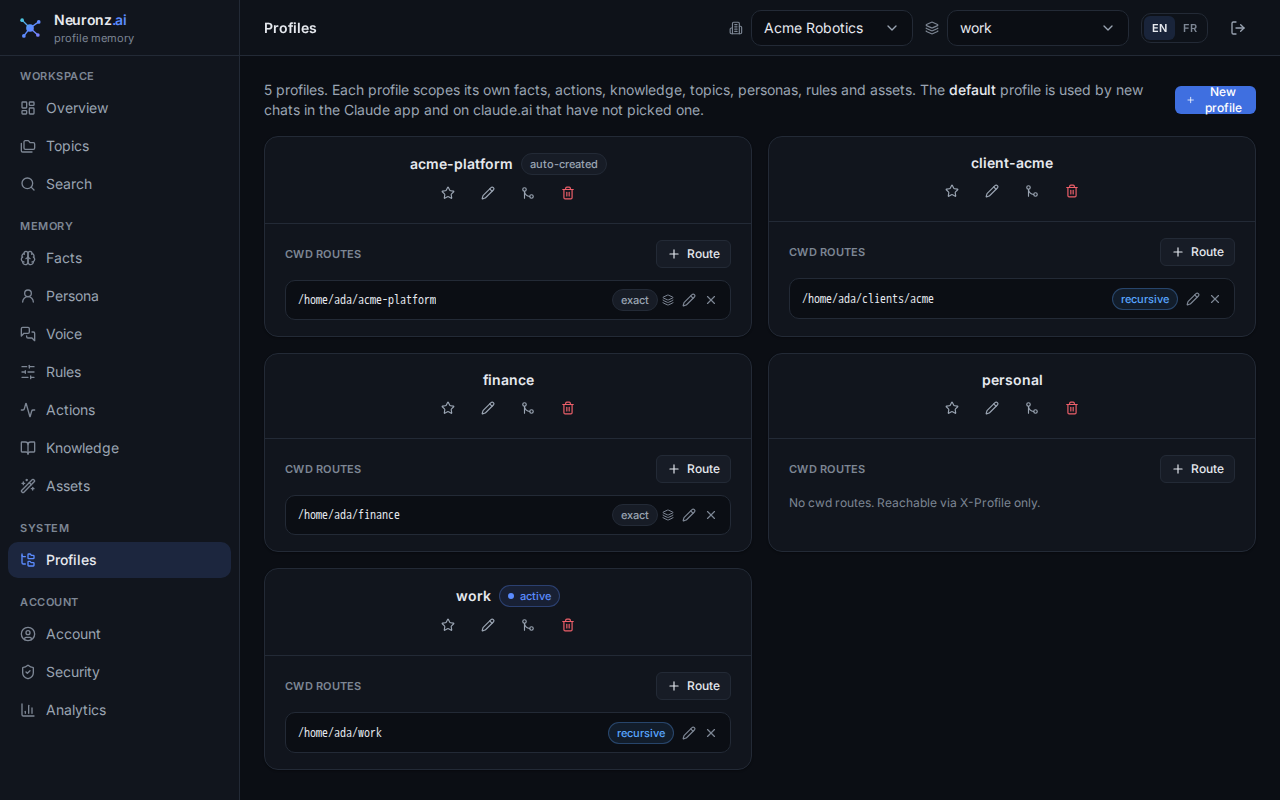
create a profile called work, and another called personalClaude uses the create_profile tool. You should see both on the Profiles page, each with the folders routed to it:
2. In a chat: set your default
On the same Profiles page, click the star on the work card (Set as default). The card now shows a default badge. Every new chat starts on work. Chats you already have keep the profile they were using.
3. In a chat: switch for one conversation
Planning a family trip? In that chat, type:
switch to the personal profileClaude uses the switch_profile tool. From then on, this chat reads and saves to personal. Your default stays work, and if you come back to this chat later it is still on personal.
The /neuronzai: commands below do not exist in a chat — there, you ask in words.
4. In Claude Code or Oh-My-Pi: give a folder its profile
Say you keep your bills and statements in ~/finance and want that memory kept apart. Ask your agent:
route ~/finance and everything under it to the profile financeIt uses the set_dir_profile tool. Every session you start in ~/finance, or in a folder inside it, now uses finance. The route also shows under that profile on the Profiles page.
Two commands help when the folder alone is not enough:
Inside a folder that already shares a profile with its parent, give it its own:
text/neuronzai:new-profile <name>It creates the profile, routes this folder to it and moves the session onto it.
Started in the wrong folder? Switch this session only:
text/neuronzai:switch-profile personalThe folder keeps its own profile next time. Run
/neuronzai:switch-profilewith no name to go back.
What just happened
You made two memory spaces and learned the two ways a harness picks one: a chat uses your default (or the one you switch to), Claude Code and Oh-My-Pi use the folder. Whatever you save from here on lands in the profile in use, so check which one that is before you start. Something landed in the wrong one? Open it in the dashboard and move it.
More detail — routes, deeper folders, the record language — is on the Profiles page.
Next: Remember once, pick up later.