
Rules
A rule is an instruction your agent must follow every time: "always run the test suite before a push", "never touch the prod database directly". Facts describe how things are; rules say how things must be done. When a rule and a remembered habit disagree, the rule wins. And no rule becomes binding until a person approves it.
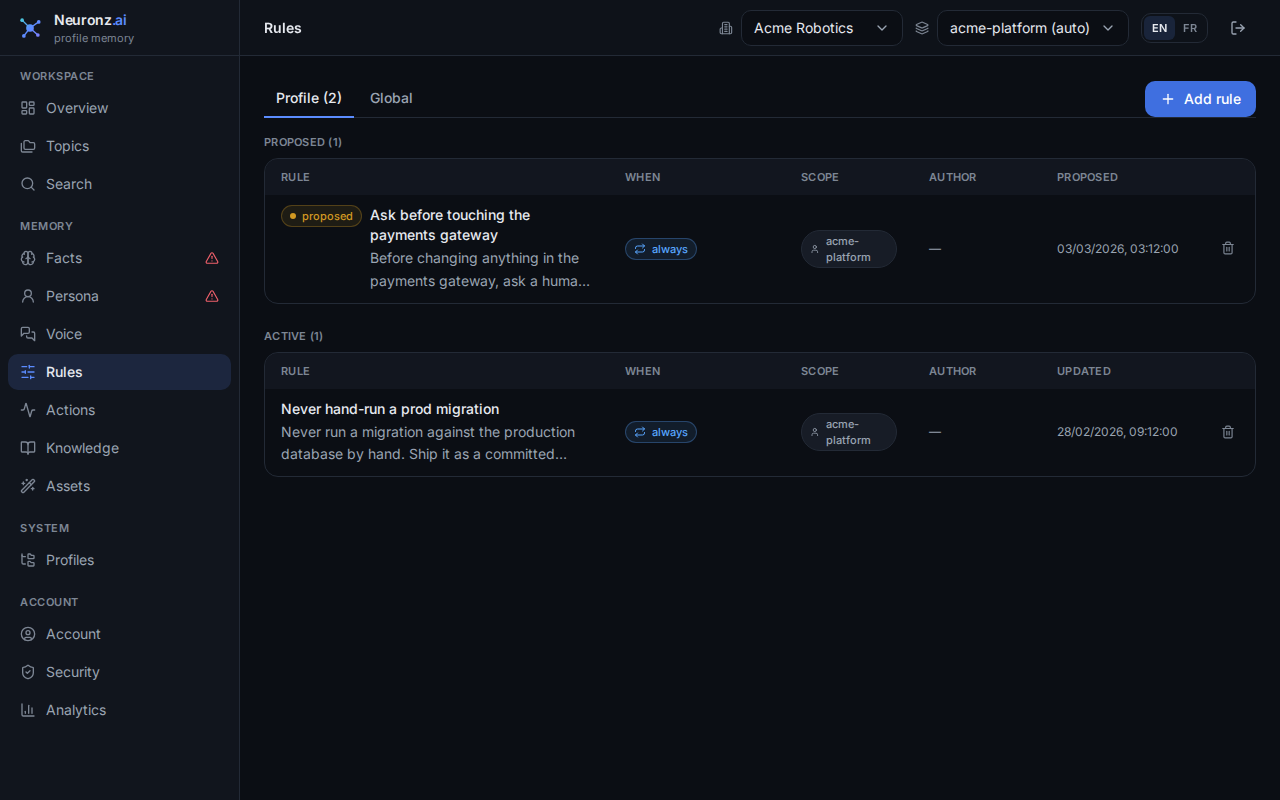
The Rules page: each rule with when it binds, its scope, and its author. Proposed rules wait here for you to approve.
Add a rule
There are two ways.
Tell your agent. Say something like "make it a rule: always run the tests before pushing". When you confirm it in the conversation, the agent saves it as an active rule. When the agent spots a rule-shaped pattern on its own, it saves it as a proposed rule instead, and a proposed rule does nothing until you approve it.
Use the dashboard. Open Rules in the dashboard and click Add rule. Give it a Title (a short name you will recognise in a list, such as tests-before-push), the Rule text, When it applies (see Conditions), a Delivery priority and a Scope. A rule you add yourself is active immediately.
Approve or reject a proposal. Proposed rules are listed on the same page. Open one and click Approve or Reject.
Before adding a rule, check the ones you already have. If a new rule overlaps an existing one, edit the existing one rather than stacking a second, possibly contradictory rule. The duplicate check helps with this.
How proposals are asked
A proposal waits for a moment it would actually have applied (you're about to do the thing it's about, or you're talking about it), and then your agent asks you in one line.
- Yes makes it binding.
- No drops it and remembers that you said no, so the same suggestion does not come back reworded.
- Ignore it or say "not now", and it stays quiet for 7 days.
Your agent asks at most one of these per session. A proposal you brush aside 3 times stops asking and is kept as a note about how you work.
Your agent can also propose a better wording for an existing rule, or propose retiring one. The existing rule stays fully in force until you accept the change.
Scope
A rule is either global (it applies in every profile), limited to the current profile, or shared by a list of profiles you pick.
Conditions: when a rule applies
The rule text says what to do. Its conditions say when it applies. Keep the "when" out of the rule text and put it in the conditions.
No conditions means the rule always applies, on every prompt and every tool call.
There are two kinds of condition:
- A check is something Neuronz.ai tests itself: the tool about to run is
Bash, the file being written ends in.py, the branch ismain. It is a plain yes or no, with no judgement involved. - A judgement is a sentence only your agent, inside the conversation, can decide: "the command touches production", "the user is asking for a refactor".
In the dashboard these are the Add check and Add judgement buttons. With two or more conditions you choose whether the rule applies when all of them hold or when any of them holds.
A check looks at one of these:
| Check | What it looks at |
|---|---|
| Tool name | the tool the agent is about to call: Bash, Write, mcp__slack__post_message |
| File path | the file that call touches |
| Tool input | the arguments of the call: the command line, the text about to be posted |
| Working directory | the repository the session is working in |
| Git branch | the current git branch |
| Prompt text | what you just asked |
| Model | the AI model your agent is running (see Rules for one model) |
It compares with matches (a pattern with *, such as **/*.py or mcp__slack__*), contains, or is. Every comparison ignores upper and lower case. Any check can be flipped to mean not. You can give one check several values; it then holds when any of them matches.
A few limits:
- A pattern can use at most three
*(**counts as one). A pattern with more is refused when you save the rule. Use contains instead; it has no limit. - A pattern only looks at the first 300 characters of long text, such as a long prompt. To find a word anywhere in a long message, use contains.
- File path needs a tool that names a file, such as an edit. A shell command doesn't name one, so a rule with a File path check does not apply to
Bashcalls. To cover shell commands, check the Tool input instead. - In a linked git worktree, Working directory is the main repository folder, while File path and Git branch follow the worktree you are in. Write a File path pattern against the folder you actually mean.
What can be checked, and when
A rule can reach your agent at two moments: on each prompt, and right before a tool call. Not every check makes sense at both.
| Check | Before a tool call | On a prompt |
|---|---|---|
| Tool name, File path, Tool input | checked | nothing to check; the rule is left out |
| Prompt text | nothing to check; the rule is left out | checked |
| Working directory, Git branch | checked | checked |
| Model | checked | checked |
If your harness (the coding agent you use: Claude Code, the Claude desktop app, Oh-My-Pi) doesn't report the working directory or branch, that check is handed to your agent to confirm, since it knows its own directory and branch. If your harness doesn't report the model, a rule with a Model check does not apply, and your agent is not asked.
After the checks, each rule ends up in one of three states:
- Every condition holds: the rule applies.
- A check came back false: the rule is left out silently and costs no space in your agent's context.
- Something is still undecided (usually a judgement): your agent gets the rule's name together with the conditions it still has to decide, and reads the rule if they hold.
So to keep a rule quiet where it doesn't belong, give it a check that is false there. For example, a rule with Tool name is Bash and "the command touches production" is left out on every file read, before the judgement is ever put to your agent.
Rules for one model
A Model check limits a rule to the AI model your agent is running, for example "only the top model may run a migration". It compares against the model name exactly as your harness reports it, in lower case. Harnesses spell it differently:
| Harness | How it names the model | Example |
|---|---|---|
| Claude Code | the bare model name | claude-opus-5 |
| Oh-My-Pi | provider/model | anthropic/claude-fable-5-1 |
So claude-* matches every Claude model on Claude Code, and */claude-* matches them on Oh-My-Pi. The dashboard suggests values from the models it has already seen in this profile. The model is checked on every request, so if you switch models mid-session the rule starts or stops applying with the switch.
Pinned rules
Set Delivery priority to Pinned for a rule that must never be missed. A pinned rule skips its judgements and applies whenever its checks hold; a pinned rule with no checks applies everywhere. It still respects its checks: a pinned rule with Tool name is Bash only applies to Bash calls, and one with a Model check only applies while that model is running. Pinned rules are listed first. Pin sparingly.
How a rule reaches your agent
Your agent receives the names of the rules that apply, plus the exact read_rules call that fetches their full text. The text itself is never pushed. That is why the title matters: it is what your agent sees and what it fetches the rule by.
On every prompt
Each prompt carries one short block that lists the applicable rules by title and gives the read_rules call to fetch them. It also tells your agent that only approved rules are binding, and that a rule with an undecided condition must be checked before it is applied.
Rules your agent has already fetched in this session are listed separately from rules it still needs to read, with an instruction to keep following them and to fetch them again if their text is no longer in front of it. Neuronz.ai can only record what it sent, not what your agent still holds, and none of this forces a model to obey; it makes sure the full text is always one call away.
Your agent is asked to read a rule again when:
- You edit it. Changing its text, title, conditions or pin brings it back to the "needs reading" list on the next prompt.
- The session compacts. Claude Code and Oh-My-Pi both report when a compaction has finished. After one, the next prompt asks your agent to read every applicable rule again.
- The session is new, or switches profile. What was fetched is tracked per session and per profile.
Right before a tool call
In Claude Code (including the Code tab of the Claude desktop app), the rules that apply to the tool call about to run are named at that moment, together with the read_rules call, and your agent is told to read them before it goes ahead. Pinned rules are named on every matching call; the others are named the first time they match in a session and again from time to time. If there are too many to list, the message says so rather than going quietly short.
This is not available on Oh-My-Pi, or in chats and Cowork tasks in the Claude app or on claude.ai. There, the per-prompt block is how rules arrive. See harness parity.
Example
You add a rule "never push to main", with Tool name is Bash and "the command is a git push to main". Later, when your agent reaches for the shell in Claude Code, Neuronz.ai settles the first condition itself and hands your agent the rule's name and the second condition, right before the step. On every file read in between, the first condition is false and the rule is never sent.
Catching a rule you already have
When a new rule says nearly the same thing as an active rule you already have, Neuronz.ai refuses to save it and names the existing rule. This check is on by default. It only fires when the two rules are close to word-for-word paraphrases, not when they merely share vocabulary, and it tells you how close they were.
Your agent brings this back to you. You decide: edit the existing rule, or confirm the new one really is different, in which case your agent saves it anyway. Editing an existing rule is never challenged, and no rule you already approved is changed.
MCP tools
Your agent reads and writes rules with read_rules, propose_rule, create_rule, update_rule and delete_rule, and records your answer to a proposal with resolve_rule_ask. See MCP tools.
Related
- Session-start briefing: the rule list a session opens with.
- Persistent memory: facts, which never override a rule.